

Development Tools
Lovable Dev Project Downloader: Export Projects as ZIP
Complete guide to the Lovable Dev Project Downloader extension for exporting code and projects


Senior Software Developer & Trading Technology Specialist
Ethan Parker is a software developer with over 8 years of experience in building web applications, trading tools, and financial technology solutions. He specializes in Python, JavaScript, API integrations, and trading automation, helping traders improve efficiency through innovative technology.
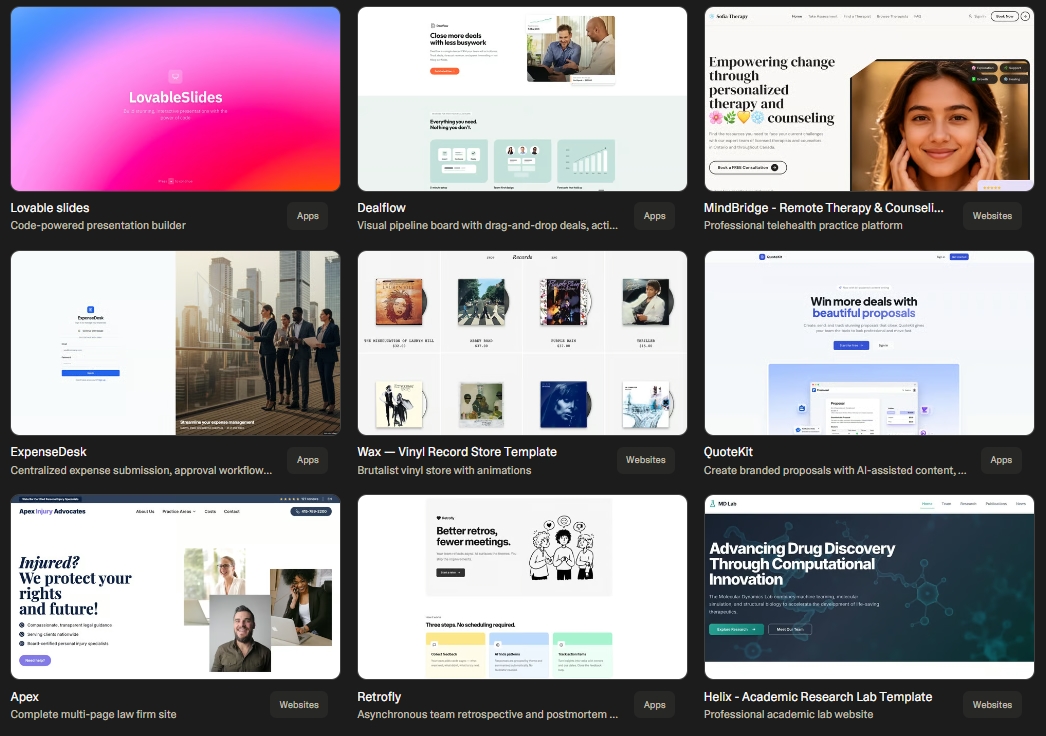
Lovable.dev has become a go-to platform for building applications with AI assistance. You describe what you want, the AI generates React code with TypeScript and Tailwind, and you iterate through chat. But there's always been a gap: getting that code out of the browser and into your own repository. The Lovable Dev Project Downloader extension fills that gap with a single click.
Contents
- 1. What the Lovable Dev Project Downloader Actually Does
- 2. Installing the Extension in Chrome
- 3. Using the Downloader: Step by Step
- 4. What Gets Included in the Export
- 5. Manual Export vs Extension: Practical Differences
- 6. Common Issues and How to Fix Them
- 7. Security and Privacy Considerations
- 8. Alternative Ways to Get Your Code Out
- 9. When the Downloader Makes Sense
- 10. Running the Exported Project Locally
- 11. Keeping the Extension Updated
- 12. Final Assessment of Lovable Dev Project Downloader
Before this extension existed, developers copied files manually or relied on the GitHub integration. That works fine for some workflows, but it adds friction when you just want a local copy to experiment, share with a teammate who doesn't have Lovable access, or archive a version before a major rewrite. The downloader packages everything — components, configuration, dependencies — into a standard ZIP archive that opens in any code editor.
This guide covers installation, usage, what actually ends up in the export, common pitfalls, and how the extension compares to the platform's built-in export options. Whether you're prototyping a SaaS dashboard, building internal tools, or learning React by studying AI-generated code, the downloader gives you ownership of what you create.
What the Lovable Dev Project Downloader Actually Does
The extension adds a download button to the Lovable project interface. Click it and you get a ZIP file containing the complete project structure: source files, package.json, tsconfig, vite config, Tailwind configuration, and any assets you've added. It's essentially the same file tree you'd see if you cloned the GitHub repo, minus the git history.
The extension reads the project state directly from the Lovable web application. It doesn't make external API calls or require authentication beyond your existing Lovable session. That means it works on private projects, shared projects, and even projects you're viewing as a collaborator — provided you have edit access in the Lovable UI.
Installing the Extension in Chrome
You won't find this in the Chrome Web Store under the name "Lovable Dev Project Downloader." The extension is distributed through GitHub releases. That means a manual install process, but it only takes a minute once you know the steps.
- Go to the extension's GitHub repository releases page
- Download the latest .zip asset (usually named something like lovable-downloader-v1.x.x.zip)
- Extract the zip to a folder on your computer
- Open Chrome and navigate to chrome://extensions/
- Enable Developer mode using the toggle in the top right
- Click "Load unpacked" and select the extracted folder
- The extension icon should appear in your toolbar
After installation, visit any Lovable project page. You'll see a new download icon in the browser toolbar, and often an additional button injected into the Lovable UI near the share or publish controls. If the button doesn't appear immediately, refresh the page — the content script needs to detect the project context.
Using the Downloader: Step by Step
Once installed, the workflow is straightforward. Open your Lovable project. Make sure you're on the main project view — not in a settings modal or the version history panel. Click the extension icon in your toolbar, then click "Download Project" or the similarly labeled button. A save dialog appears. Choose a location. Done.
The exported ZIP uses the project name as the folder name. Inside, you'll find a standard Vite + React + TypeScript structure. Run npm install, then npm run dev, and the project should start locally exactly as it runs on Lovable's preview. That's the whole point: zero-config reproduction of the hosted environment.
- Open the Lovable project you want to export
- Verify the project loads completely (wait for the preview to render)
- Click the extension icon in Chrome toolbar
- Select "Download Project" or "Export as ZIP"
- Save the file to your desired location
- Extract and open in your code editor
- Run npm install && npm run dev to verify
What Gets Included in the Export
The export aims for completeness. You get the full src directory with all components, hooks, utilities, and pages. Configuration files come along: package.json with all dependencies, tsconfig.json, vite.config.ts, tailwind.config.js, postcss.config.js, and index.html. The public folder transfers too, so favicons, robots.txt, and any static assets you've uploaded are preserved.
Environment variables are the notable exception. The extension does not export .env files or any secrets configured in the Lovable dashboard. That's intentional — you wouldn't want API keys or database URLs in a portable archive. You'll need to recreate your environment file locally based on what the project requires.
Scroll horizontally to see all columns
| Category | Included | Notes |
|---|---|---|
| Source code (src/) | Yes | All components, pages, hooks, utils |
| Package configuration | Yes | package.json, lockfile, tsconfig, vite config |
| Styling config | Yes | tailwind.config.js, postcss.config.js |
| Static assets (public/) | Yes | Images, favicons, robots.txt |
| Environment variables | No | Must recreate .env locally |
| Git history | No | Fresh repository, no commits |
| Supabase migrations | Partial | Only if committed to project files |
| Lovable-specific metadata | No | Project ID, chat history excluded |
Manual Export vs Extension: Practical Differences
Lovable has a built-in "Export to GitHub" feature. It creates a repository on your account with the project code. That's useful for version control and collaboration, but it's a different workflow. The extension gives you a local file immediately — no GitHub account required, no repository creation, no git commands. You get a folder you can open in VS Code thirty seconds after deciding you want it.
The GitHub export includes git history if you've been committing through Lovable. The extension never includes history. For some teams that's a dealbreaker; for others it's a feature — a clean slate without experimental commits cluttering the log. The extension also works on projects where you don't have GitHub write access, like a client's project or a teammate's prototype shared with you.
Scroll horizontally to see all columns
| Factor | Chrome Extension | GitHub Export |
|---|---|---|
| Speed to local files | ~10 seconds | ~2 minutes (repo creation + clone) |
| Requires GitHub account | No | Yes |
| Preserves git history | No | Yes |
| Works without write access | Yes | No |
| Includes environment variables | No | No |
| Official Lovable feature | No | Yes |
| Works offline after download | Yes | Yes (after clone) |
The extension solves the "I just want the code right now" problem. GitHub export solves the "I want this in version control" problem. They're complementary, not competing.
Common Issues and How to Fix Them
The most frequent complaint: "I clicked download and nothing happened." Usually the content script hasn't loaded yet. Refresh the Lovable project page. Wait for the preview to fully render. The extension needs to detect the project ID from the page context, and that only happens after the app initializes.
Another issue: the downloaded ZIP extracts but npm install fails. This typically means the project uses a dependency that's not in the public registry — sometimes a private package or a GitHub-hosted dependency that Lovable resolves through its build environment. Check package.json for git+https or git+ssh URLs. You'll need access to those sources locally.
- Refresh the page if the download button doesn't appear
- Wait for full preview render before clicking download
- Check package.json for private dependencies after export
- Recreate .env file with your local credentials
- Verify Node version matches (project may need Node 18+)
- Clear Chrome extension cache if behavior seems stale
Security and Privacy Considerations
The extension runs entirely in your browser. It reads the DOM and JavaScript state of the Lovable page you're viewing, packages that data, and triggers a browser download. No data leaves your machine except the initial page load from Lovable's servers. The extension doesn't phone home, doesn't have analytics, and doesn't request permissions beyond the active tab.
That said, you're installing an unpacked extension in developer mode. Chrome warns you about this for good reason: unpacked extensions bypass the Web Store review process. If the repository were compromised, a malicious update could exfiltrate your project code. Mitigate this by auditing the source code before installing, pinning to a specific release tag, and not auto-updating from an untrusted fork.
- Review the source code on GitHub before installing
- Install from a specific release tag, not the main branch
- Disable the extension when not actively downloading
- Avoid forks unless you trust the maintainer
- Remember: your Lovable session cookie is accessible to the extension
Alternative Ways to Get Your Code Out
The extension isn't the only path. Lovable's GitHub integration remains the most robust for ongoing development. Connect your repository once, and every save in Lovable pushes a commit. You get history, branching, CI/CD triggers — the full git workflow. For teams, this is usually the right choice.
There's also the manual approach: open the Lovable file explorer in the UI, click each file, copy the contents, create the same file locally. Tedious for anything beyond a handful of files, but it works in a pinch and requires zero installation. Some developers write their own scripts using the Lovable API (undocumented, subject to change) to automate exports programmatically.
Scroll horizontally to see all columns
| Method | Best For | Drawback |
|---|---|---|
| Chrome Extension | Quick local copy, no GitHub needed | No history, manual updates |
| GitHub Integration | Team collaboration, CI/CD, history | Requires GitHub, setup overhead |
| Manual Copy-Paste | Single files, learning, no tools | Impractical for full projects |
| Custom API Script | Automation, CI pipelines | Unofficial, breaks on changes |
When the Downloader Makes Sense
Use the extension when you're prototyping solo and want a local backup before a risky refactor. Use it when a client asks for the source code but doesn't want a GitHub repository. Use it when you're learning React and want to study the AI-generated patterns offline. Use it when you're on a plane without internet and need to keep coding.
Don't use it as your primary deployment pipeline. Don't use it to share code with teammates who should be on the GitHub repo. Don't expect it to handle database migrations, edge functions, or Supabase configuration — those live outside the exported frontend bundle. The extension exports the client application, not the backend infrastructure.
Think of it as a "save as" button for the web. It gives you a snapshot, not a subscription.
Running the Exported Project Locally
After extraction, open a terminal in the project root. Run npm install. If you see warnings about peer dependencies or deprecated packages, that's normal — Lovable's template dependencies age like any others. Then run npm run dev. Vite should start on localhost:5173 (or the next available port). The application should load identically to the Lovable preview.
If the dev server starts but the page is blank or shows errors, check the browser console. Missing environment variables are the usual culprit. Create a .env file in the project root with the variables your code expects — VITE_SUPABASE_URL, VITE_STRIPE_KEY, whatever the project uses. The variable names are in the source; grep for import.meta.env to find them.
- Extract the ZIP to a project folder
- Open terminal in that folder
- Run npm install (or pnpm install / yarn install)
- Create .env file with required variables
- Run npm run dev
- Open the displayed localhost URL
- Verify all pages and features work
Keeping the Extension Updated
Since it's not in the Web Store, updates are manual. Watch the GitHub repository's releases page. When a new version appears, download the new zip, remove the old extension from chrome://extensions/, and load the new unpacked folder. Or, if you're comfortable with git, clone the repo and pull updates, then reload the extension from the same folder.
Lovable occasionally changes their frontend structure. When that happens, the extension may break — the download button disappears, or the ZIP is empty. The maintainers usually push a fix within days. If you depend on the extension for daily work, consider starring the repo to get notifications, or check the issues tab when something stops working.
Frequently Asked Questions
Is the Lovable Dev Project Downloader an official Lovable product?
No. It's a community-built open source Chrome extension. Lovable the company hasn't officially endorsed or supported it, but they also haven't taken steps to block it.
Does the extension work on the free Lovable plan?
Yes. The extension reads the project from your browser session, so it works on any plan that lets you view and edit projects in the browser — including the free tier.
Can I download projects I only have view access to?
No. You need edit access in the Lovable UI. The extension relies on the same permissions as the web interface.
Are environment variables and secrets included in the export?
No. The extension intentionally excludes .env files and any secret values. You must recreate your environment configuration locally.
The download button doesn't appear. What should I do?
Refresh the Lovable project page and wait for the preview to fully load. The extension's content script needs to detect the project context, which only happens after the app initializes.
Does the exported project include git history?
No. The export is a clean file snapshot without any version control history. For git history, use Lovable's built-in GitHub export feature.
Can I use this extension on browsers other than Chrome?
The extension is built for Chrome's extension API (Manifest V3). It may work on Edge, Brave, or other Chromium-based browsers if you load it as an unpacked extension, but it's only tested on Chrome.
Final Assessment of Lovable Dev Project Downloader
The Lovable Dev Project Downloader does one thing well: it turns a browser-hosted AI project into a local ZIP file in seconds. No authentication dance, no repository setup, no command-line tools. For solo developers, learners, and anyone who needs a quick offline copy, it removes real friction from the workflow.
The trade-offs are clear. You lose git history. You lose environment configuration. You depend on an unofficial extension that could break when Lovable updates their UI. For production team workflows, the GitHub integration remains superior. But as a complement — a "save as" button for the web — the extension earns its place in the toolkit. Install it, try it on your next prototype, and decide if the convenience matches your needs.