

AI Development Tools
Lovable Login: Access Your AI App Builder Account
Complete guide to accessing Lovable dev platform and managing your account

Senior Software Developer & Trading Technology Specialist
Ethan Parker is a software developer with over 8 years of experience in building web applications, trading tools, and financial technology solutions. He specializes in Python, JavaScript, API integrations, and trading automation, helping traders improve efficiency through innovative technology.
Lovable has become a go-to platform for developers and non-technical founders who want to build applications using AI. The login process is straightforward, but there are a few details worth knowing before you get started. This guide covers everything from the initial sign-in to account recovery, security settings, and common troubleshooting steps.
Contents
- 1. How to Sign In to Lovable
- 2. Using Temporary Login Links
- 3. Troubleshooting Common Login Issues
- 4. Password Reset and Account Recovery
- 5. Two-Factor Authentication Setup
- 6. Managing Account Settings
- 7. Deleting Your Lovable Account
- 8. Security Features and Best Practices
- 9. Team Access and Collaboration
- 10. Mobile Access and Responsive Design
- 11. API Access and Programmatic Authentication
- 12. Billing and Subscription Access
- 13. Common Questions About Lovable Login
- 14. Final Assessment of Lovable Login Experience
The platform uses a modern authentication system that supports email and password combinations as well as social login options. Most users access the service through the main domain at lovable.dev, where the sign-in page presents a clean interface with minimal friction. Understanding how the authentication flow works can save time when you encounter issues or need to manage multiple accounts.
Whether you are a first-time visitor creating an account or a returning user who needs to reset credentials, the process follows standard patterns with a few platform-specific nuances. The following sections walk through each scenario in detail, including temporary login links, account settings, and security features that protect your projects and data.
How to Sign In to Lovable
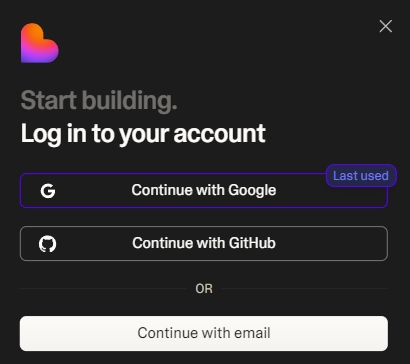
The primary way to access your account is through the main login page at https://lovable.dev/login. The page offers two main authentication methods: email and password, or social login via GitHub. GitHub integration is particularly useful for developers because it streamlines repository connections and deployment workflows later on.
- Navigate to https://lovable.dev/login in your browser
- Enter your registered email address and password
- Alternatively, click the GitHub button to authenticate with your GitHub account
- Complete any two-factor authentication prompt if enabled
- You will be redirected to your dashboard upon successful login
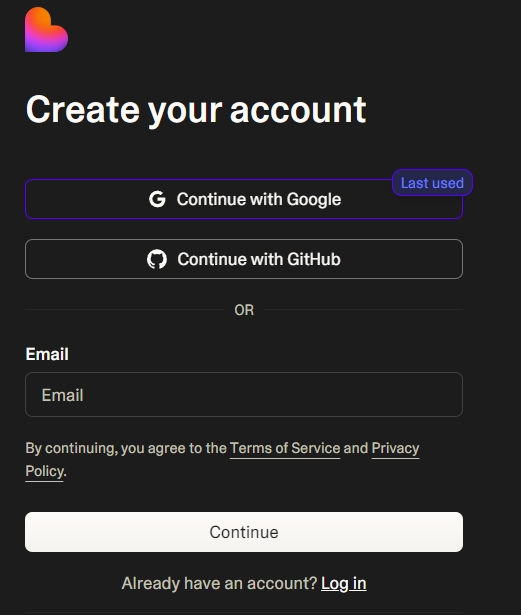
If you have not created an account yet, the sign-up link on the login page takes you through a similar flow. The platform asks for basic information and sends a verification email. Once verified, you can immediately start building projects. The free tier includes enough credits to explore the core features before deciding on a paid plan.
Using Temporary Login Links
Lovable supports temporary login links sent via email, which can be convenient when you do not want to type a password or are accessing from a new device. These links expire after a short period, typically 15 to 30 minutes, and can only be used once. The system generates them when you request a magic link from the login page.
- Click "Sign in with email link" on the login page
- Enter the email address associated with your account
- Check your inbox for a message from Lovable
- Click the link in the email within the expiration window
- You will be logged in automatically without entering a password
Temporary links are especially helpful for team members who need quick access without sharing permanent credentials. They also reduce the risk of password reuse across services. However, they should not replace a strong password and two-factor authentication for regular use.
Troubleshooting Common Login Issues
Most login problems fall into a few predictable categories. The table below summarizes the most frequent issues and their solutions. Before contacting support, try the relevant fix based on the symptom you are experiencing.
Scroll horizontally to see all columns
| Issue | Likely Cause | Solution |
|---|---|---|
| Invalid credentials error | Typo in email or password | Double-check spelling, ensure caps lock is off, try password reset |
| Magic link not received | Email filtering or typo | Check spam folder, verify email address, request new link |
| GitHub login fails | Popup blocked or permissions | Allow popups for lovable.dev, ensure GitHub account has verified email |
| Redirected to login repeatedly | Session cookie issue | Clear browser cookies for lovable.dev, try incognito mode |
| Account not found | Wrong email or unregistered | Verify which email you used, check for signup confirmation email |
If none of these solutions work, the problem may be on the platform side. Check the status page or community channels for ongoing incidents. Browser extensions, particularly password managers and privacy tools, can sometimes interfere with the authentication flow. Disabling them temporarily helps isolate the cause.
Clearing cookies for the specific domain resolves more login loops than any other single step.
Password Reset and Account Recovery
Forgotten passwords are handled through a standard reset flow. From the login page, click the "Forgot password" link and enter your registered email. The system sends a reset link that allows you to create a new password. The link expires after a few hours for security reasons.
- Click "Forgot password" on the login page
- Enter the email address on your account
- Check your inbox for the reset email
- Click the link and set a new password
- Log in with the new credentials
If you no longer have access to the email address on file, recovery becomes more involved. You will need to contact support directly and provide proof of account ownership. This may include project names, billing information, or previous correspondence. The process is manual and can take several business days.
Two-Factor Authentication Setup
Enabling two-factor authentication adds a significant layer of security to your account. Lovable supports authenticator apps like Google Authenticator, Authy, and 1Password. Once enabled, each login requires a time-based code from your authenticator in addition to your password or magic link.
- Go to Account Settings after logging in
- Select Security or Two-Factor Authentication
- Scan the QR code with your authenticator app
- Enter the generated code to confirm setup
- Save the backup codes in a secure location
Backup codes are critical. If you lose access to your authenticator app, these codes are the only way to regain entry without support intervention. Store them in a password manager or printed in a secure physical location. Do not save them in the same device as your authenticator app.
Managing Account Settings
The account settings page at https://lovable.dev/settings/account lets you update profile information, change your email, manage connected services, and configure notifications. Changes to critical settings like email or password require re-authentication for security.
Scroll horizontally to see all columns
| Section | Purpose | Requires Re-auth |
|---|---|---|
| Profile | Name, avatar, bio | No |
| Primary contact address | Yes | |
| Password | Credential management | Yes |
| Connected Accounts | GitHub, other OAuth providers | Yes |
| Notifications | Email preferences for activity | No |
| Billing | Plan, payment method, invoices | Yes |
The connected accounts section is where you link or unlink GitHub. This connection is required for deploying projects to GitHub repositories and for certain CI/CD integrations. You can connect multiple GitHub accounts if you work across different organizations, though only one can be active at a time for deployments.
Deleting Your Lovable Account
Account deletion is permanent and irreversible. All projects, data, billing history, and credits are removed. Before proceeding, export any project code or data you want to keep. The deletion option is located at the bottom of the account settings page and requires password confirmation.
- Export project code from the dashboard or via GitHub
- Cancel any active subscriptions to avoid future charges
- Use any remaining credits or request a refund if eligible
- Navigate to Settings > Account > Delete Account
- Enter your password to confirm
- Confirm the final warning dialog
The platform may retain certain anonymized data for analytics and legal compliance after deletion. Personal identifiers are removed according to the privacy policy. If you think you might return, consider downgrading to the free tier instead of deleting.
Account deletion cannot be undone. Export everything you might need before confirming.
Security Features and Best Practices
Beyond two-factor authentication, Lovable implements several security measures to protect accounts and projects. Session management, device tracking, and audit logs give you visibility into account activity. Regular security reviews help catch unauthorized access early.
- Review active sessions periodically in security settings
- Revoke sessions from devices you no longer use
- Enable login notifications for new device alerts
- Use a unique, strong password not used elsewhere
- Keep your email account secure with its own 2FA
The security dashboard shows recent login attempts, including location, device, and IP address. Suspicious activity should be investigated immediately by revoking unknown sessions and changing your password. If you suspect a compromise, contact support after securing the account.

Team Access and Collaboration
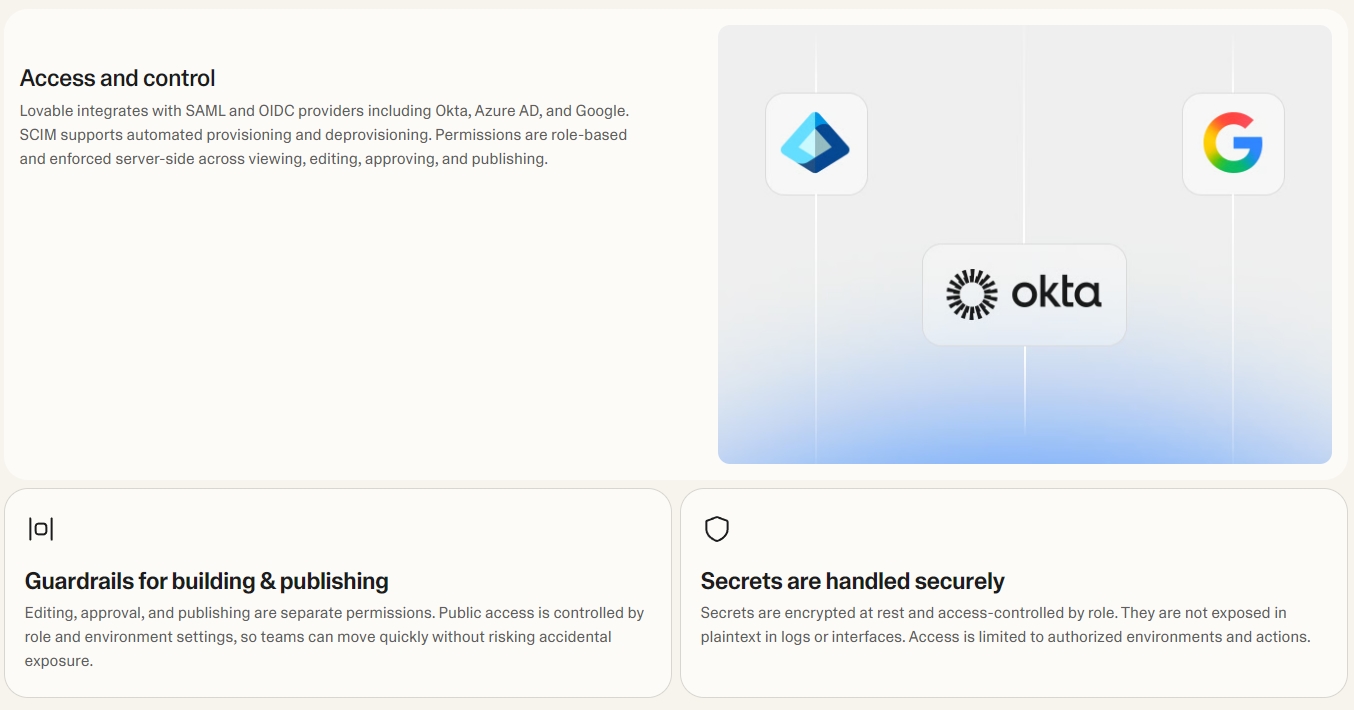
For teams, Lovable provides organization-level access control rather than sharing individual credentials. Organization owners can invite members with specific roles, each granting different permissions. This approach is more secure and auditable than sharing login details.
Scroll horizontally to see all columns
| Role | Can View Projects | Can Edit Projects | Can Deploy | Can Manage Members |
|---|---|---|---|---|
| Owner | Yes | Yes | Yes | Yes |
| Admin | Yes | Yes | Yes | Yes |
| Developer | Yes | Yes | Yes | No |
| Viewer | Yes | No | No | No |
Invitations are sent via email and expire after seven days. Members accept the invitation and authenticate with their own accounts. This means each person maintains their own credentials and 2FA settings. Removing a member immediately revokes their access without affecting others.
Mobile Access and Responsive Design
The login page and dashboard work on mobile browsers, though the full development experience is designed for desktop. You can check project status, review logs, and make minor edits from a phone or tablet. Authentication flows including magic links and 2FA function identically on mobile.
There is no dedicated mobile app for the platform itself. The responsive web interface adapts to smaller screens, but complex editing tasks remain difficult on touch devices. For serious development, use a desktop or laptop with a full keyboard and mouse.
Mobile access is fine for monitoring. Real development still needs a proper workstation.
API Access and Programmatic Authentication
Developers building integrations or automating workflows can use API tokens instead of interactive login. Tokens are generated in the developer settings and can be scoped to specific permissions. They do not replace user login but complement it for server-to-server communication.
- Generate tokens in Settings > Developer > API Tokens
- Assign minimal required scopes for each token
- Store tokens securely, never in client-side code
- Rotate tokens periodically and revoke unused ones
- Monitor token usage in the activity log
API tokens bypass the standard login flow entirely. They authenticate requests directly and are not subject to 2FA challenges. This makes token security critical. Treat them like passwords and never commit them to version control.
Billing and Subscription Access
Billing information is tied to the account owner and managed in the billing section of settings. Only owners and admins can view and modify payment methods, plans, and invoices. The free tier requires no payment details, but upgrading prompts for a credit card or other supported payment method.
Plan changes take effect immediately for upgrades. Downgrades apply at the end of the current billing cycle. Credits and usage limits adjust accordingly. If a payment fails, the account enters a grace period before reverting to the free tier with reduced capabilities.
Common Questions About Lovable Login
The following questions address the most frequent points of confusion around authentication, account management, and access control. They reflect real scenarios encountered by users across different experience levels.
Frequently Asked Questions
Can I use Lovable without a GitHub account?
Yes. You can create an account with just an email and password. GitHub is optional but recommended for deployment features.
Why does my magic link say it has expired?
Magic links expire after 30 minutes for security. Request a new link from the login page if yours has expired.
How do I switch between multiple GitHub accounts?
Disconnect the current GitHub account in Settings > Connected Accounts, then connect the new one. Only one can be active at a time.
What happens to my projects if I delete my account?
All projects and data are permanently deleted. Export any code you want to keep before confirming deletion.
Can I have multiple Lovable accounts with the same email?
No. Each email address can only be associated with one account. Use a different email for additional accounts.
Why am I being asked to log in again after a short time?
Sessions expire after inactivity or for security reasons. Enable "Remember me" on trusted devices to extend session duration.
How do I contact support if I cannot log in at all?
Use the contact form on the marketing site or email support directly. Include the email address you believe is on the account.
Final Assessment of Lovable Login Experience
The authentication system balances simplicity with security. Most users will only ever need the basic email and password or GitHub login. The magic link option adds convenience for occasional access, while 2FA and session management provide depth for those who need it. Organization-level access control eliminates the risky practice of credential sharing among teams.
Areas for improvement include more granular API token scopes and better documentation for programmatic authentication. The account deletion process is appropriately cautious but could benefit from a clearer data export workflow. Overall, the login experience stays out of the way and lets you focus on building applications.